
You can upload images and files (e.g. photos, documents) directly into a Case Record > Notes tab. This is a quick and convenient way to share images pertaining to your client with your team.
Alternatively, you can also add a link to an externally held image or other file (e.g. on your Sharepoint, Google Drive or image library) using the Link field.
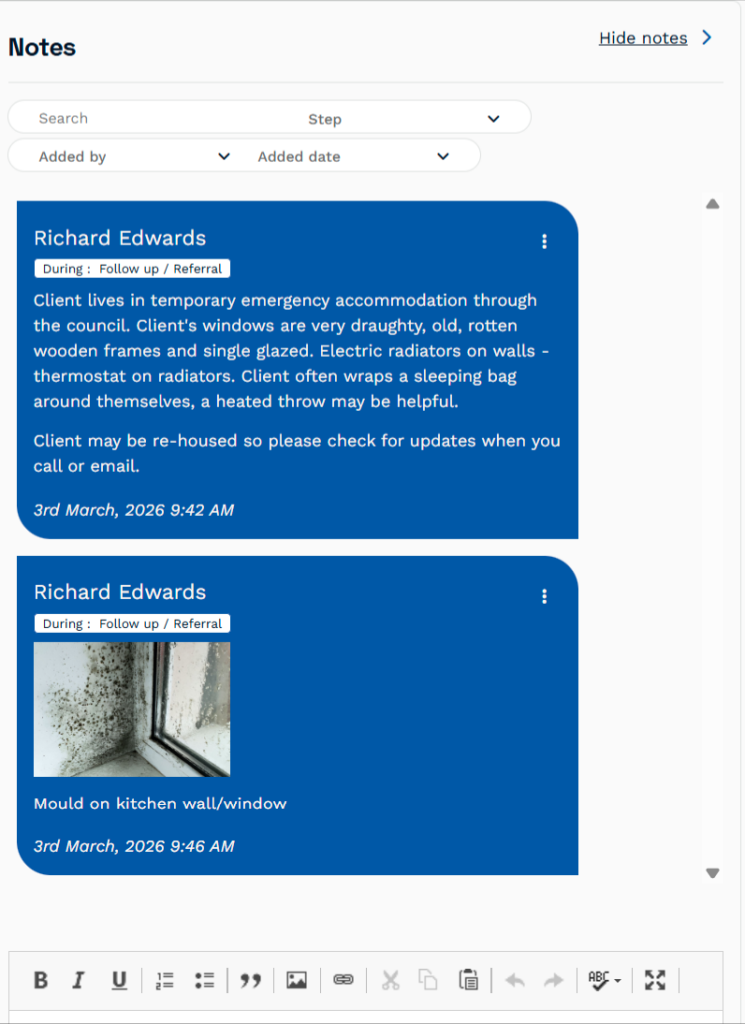
How to add an image to the Notes:
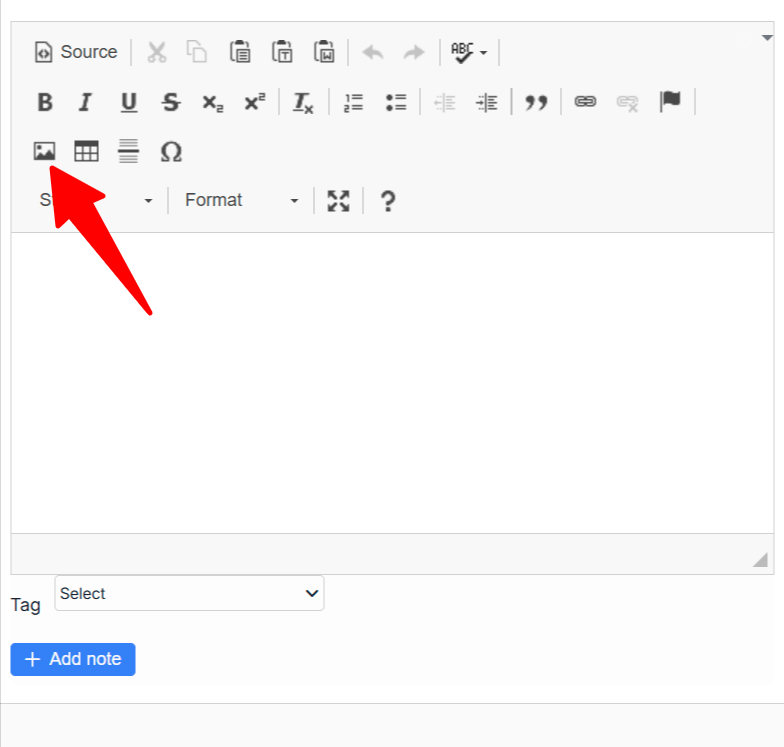
- In the Notes editor, click the Add image button
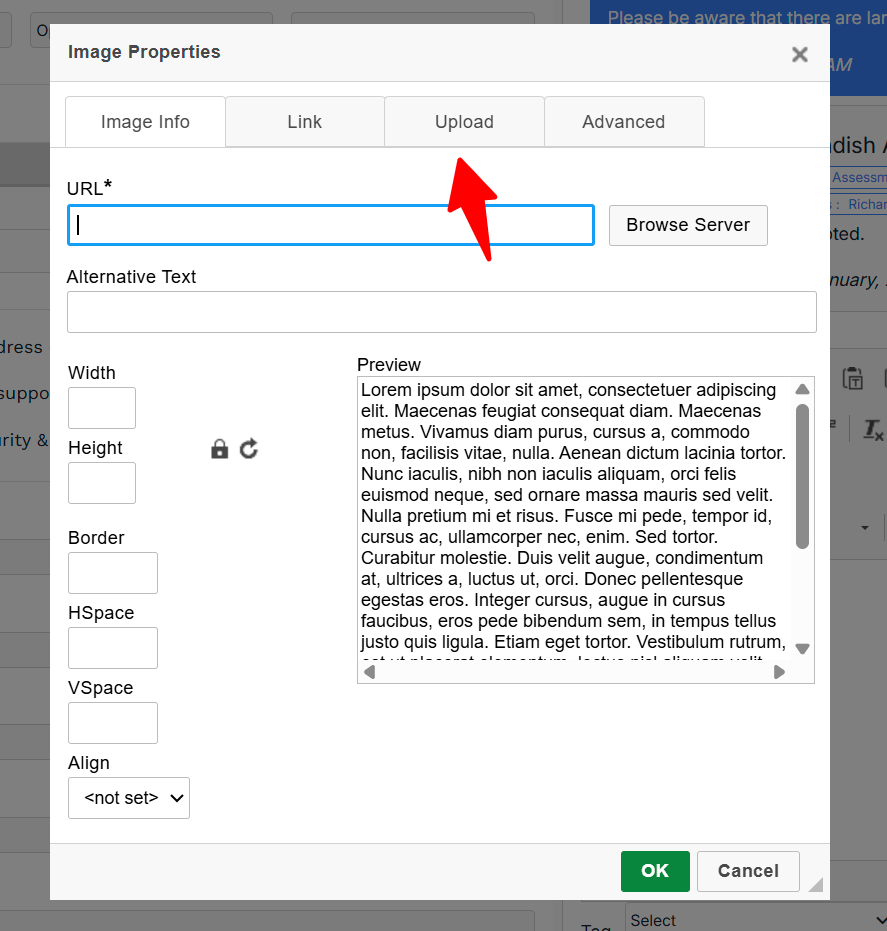
- Choose Upload -> Choose image -> [find your file on your computer], then Send to server
A note on image sizes / resizing an image
Note: At the time of writing there is a known bug that images may not be sized correctly in a case’s Notes if the image uploaded is large. They may also appear stretched/squished if they are very wide.
To fix this, you may want to reduce the image size the Add Image form. Start by reducing the Height – the width should reduce too keep the original image’s aspect ratio.
