
When reporting, you can filter the data included by AND or OR conditions.:
Example situation:
I want to run a report and apply a filter to only include cases whose Tenure Type are either ‘Owner occupier, freehold’ OR ‘Owner occupier, leasehold’.
1. Go to Reporting -> Report Templates -> [and then choose an existing report or create a new report]
2. Click the Add a New Block button
3. Choose block type = Statistics
4. Click Add a filter and choose the field you want to filter by (here, Tenure Type). Make sure it’s set to Equals.
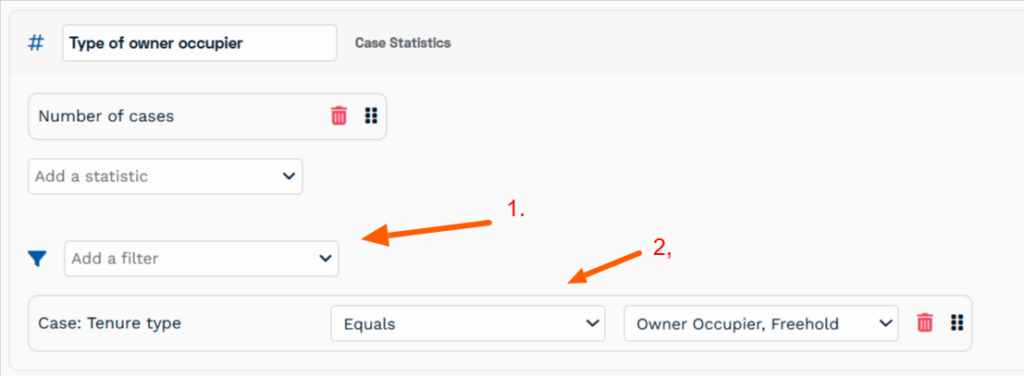
5. Now add another filter by clicking Add a filter again
6. Choose the field you want to add (here, it’s Tenure Type again, but I want Equals to match a different tenure type)
7. Choose whether I want the filter to Match “All” (i.e. AND), or “at least one” (OR) of the filtering conditions.
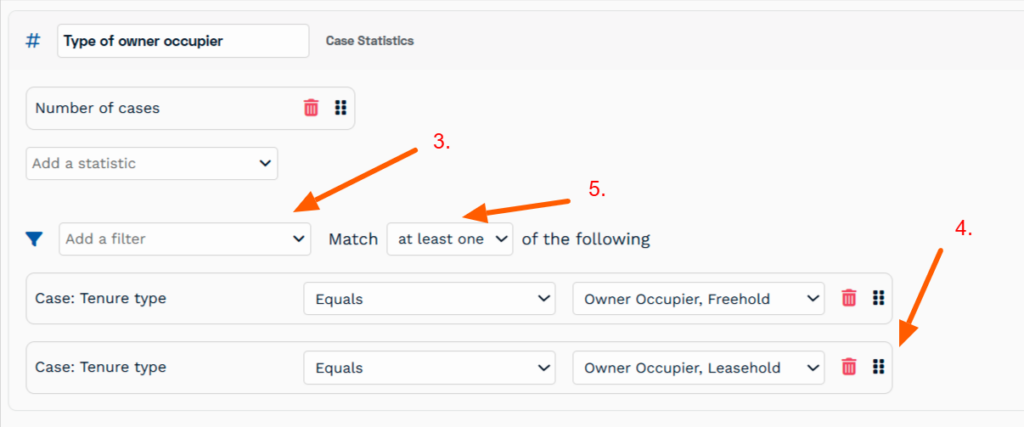
8. Now run your reports as per normal.