You’ll need to have an Admin role to create a new user. You can find out more about the two user roles in Nook in this article.
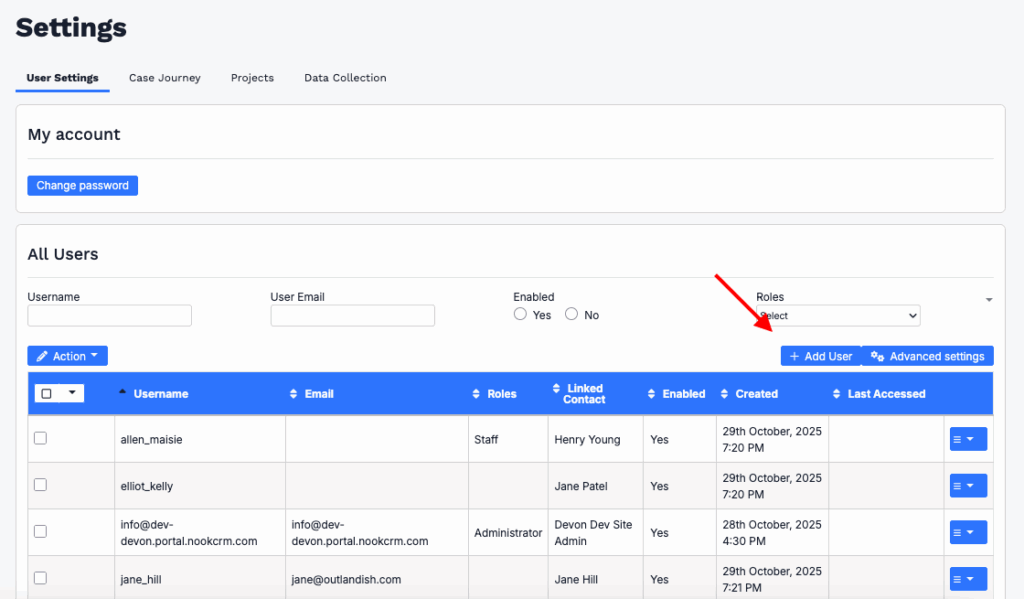
To add a new user, head to Settings and open the User Settings tab. Just above the list of existing users, you’ll spot a small blue Add user button — click that to get started.
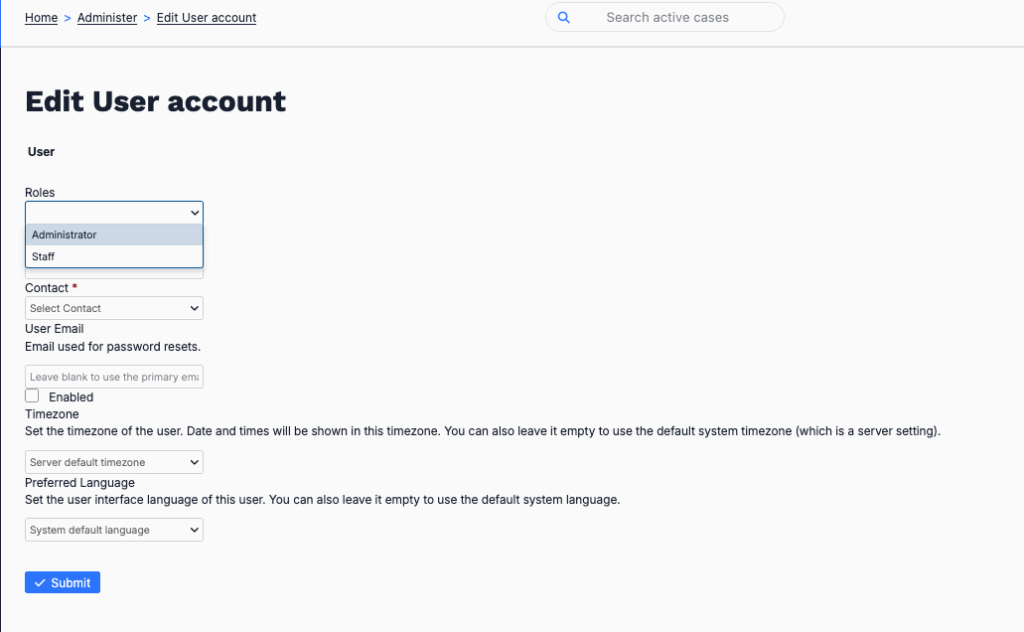
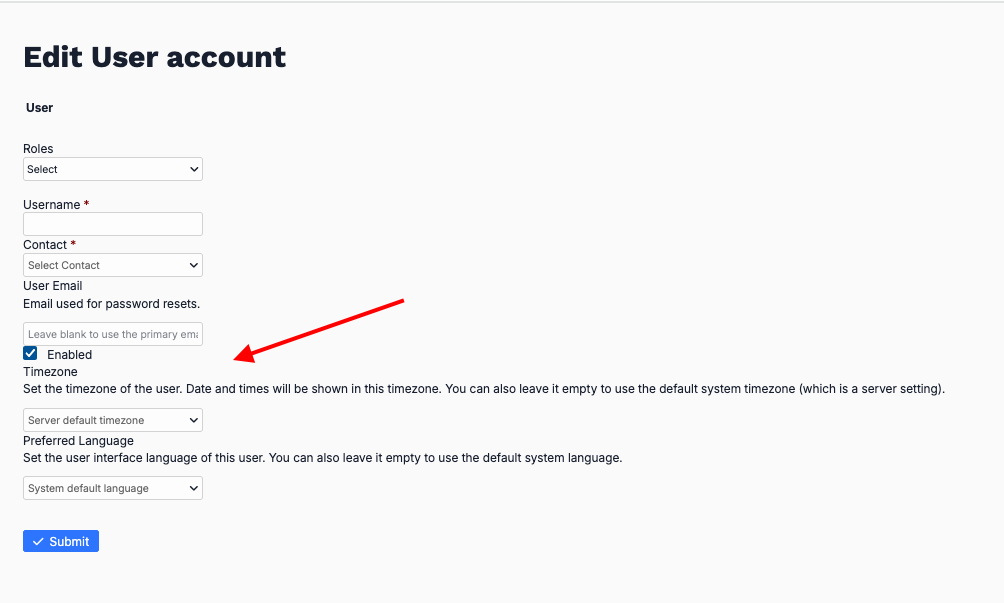
A new dialogue will open where you can enter all the details for the new user. Don’t forget to tick the Enable user checkbox as well.
Once that’s done, the new user can log in using the Forgot my password option. Simply share your Nook link with them so they know where to sign in.
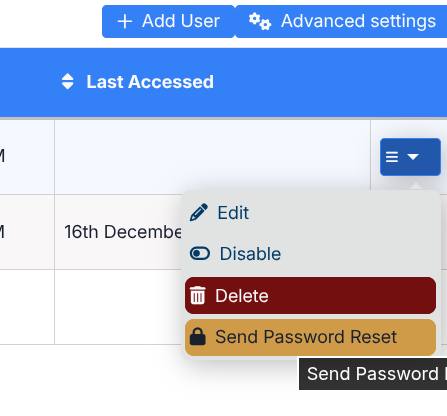
As an Admin you can also send a password reset email from the admin page once you’ve added a user. It will expire if they don’t get it in time – but that will take them to the right place to trigger a new one.