
Tasks are one-off or repeated activities you do with clients. For example, make a telephone call, do a house visit etc.
To add a Task to a case:
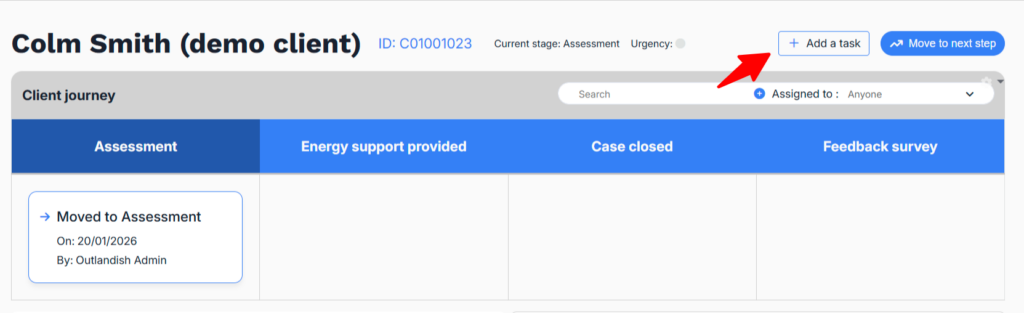
- Go into the client’s Case Record -> Click the Add Task button
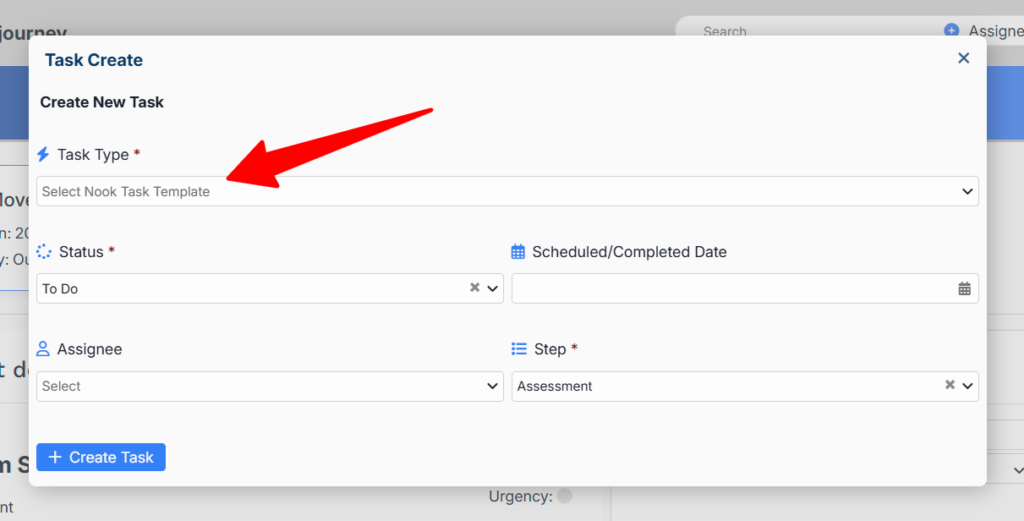
- Then choose the Task type from the list of pre-configured Tasks
- Add the other information if relevant (due date, Step, assignee)
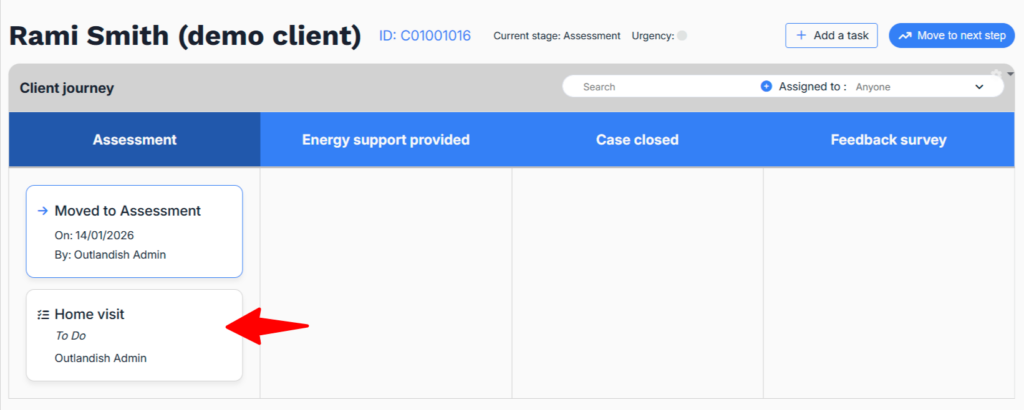
- It should now appear in the Client’s Case Journey.
Assignees will see Tasks they’ve been assigned in the Dashboard.
Automatically appearing tasks
Note: Some tasks might appear automatically when you move a case from one Step to the next (e.g. if a case is moved into the “Do Assessment” phase, it might create a “Home Visit” task. This is unique to your own setup and can be controlled in Settings > Case Journey.
Recording results of Tasks / measures taken during a task
In Nook there are two ways of recording your work with clients:
1. Recording measures taken at a Case-level = for recording more one-off interventions re: the person / property (e.g. they’ve been referred to X service)
2. Recording measures taken as part of a Task = for recording data when it’s more variable & changes often (e.g. the amount of a fuel voucher to be issued after each home visit)
Here we’ll talk about the latter.
Recording measures at a Case-level:
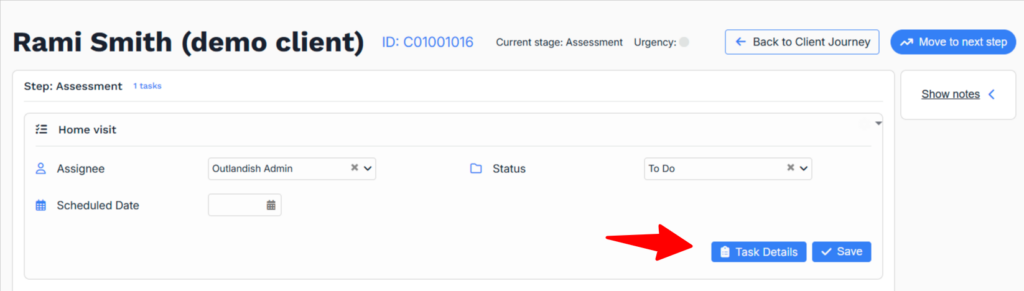
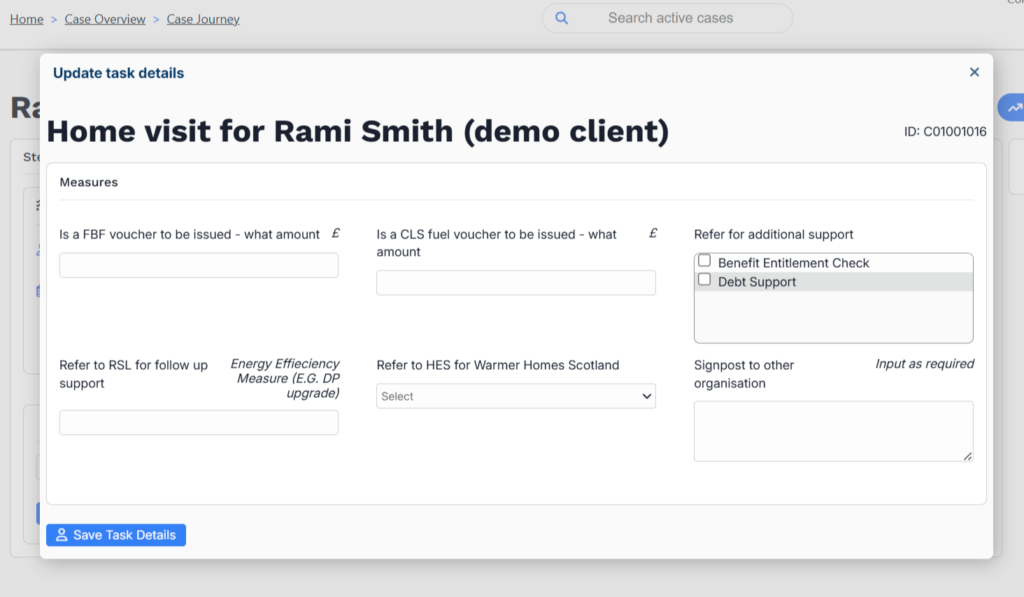
Go to [the case] -> [the relevant task in the Steps] -> Click the Task Details button.
Next you will see all the Task-level questions. Add the data you need.
Note: At the time of writing, all Task-level questions appear against every Task, even if they’re not always relevant. There is no way to assign specific questions to specific tasks or task types (so you can’t have questions only for ‘Home Visit’ tasks, for instance).
Completing a task
Finally, don’t forget to update the Status of a Tasks to Completed, and add the completed date. This will be useful for tracking and for reporting.