Nook supports two factor authentication (2FA). This means that, after enabling, user logging into Nook with their email and password will also be asked to provide a security code. This code updates every 60 seconds.
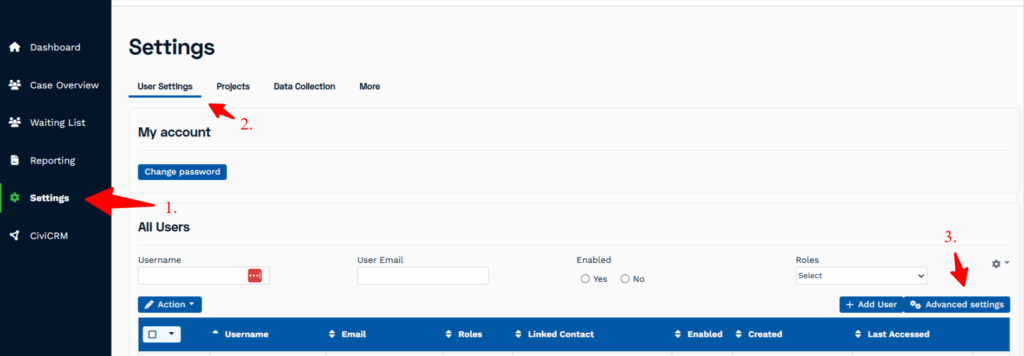
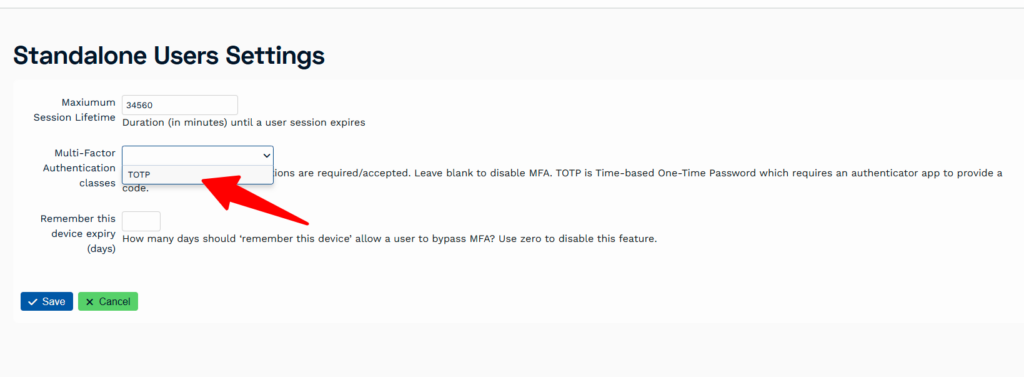
Admin users can enable two factor authentication for Nook via Settings -> User settings -> Advanced settings. Then choosing Multi-factor authentication classes -> TOTP. See the screenshots below
TOTP stands for Time-based One-Time Password (TOTP) – a temporary, unique code that regularly expires every 30–60 seconds.
What happens after enabling TOTP? / Authenticator apps
Once enabled, each user on your team will be guided through the setup when they next try to log in. 2FA requires an extra authenticator app (typically an app on their phone, or it can be an extension within the user’s web browser). Each user will need to point their phone camera at a QR code on the login screen (or enter the ‘seed’ code if they’re using a web app), and then save the result in their app.
When the user next logs in, they will need their authenticator app to retrieve the latest TOTP security code and enter it into the Nook login screen.